
Setup guide
Item Mapping for Online Orders
Learn how stable item IDs map ordering-platform products to the correct POS items so incoming orders can be processed reliably.
- Topic
- Menus & items
- Last reviewed
To ensure that orders from delivery platforms like Lieferando, Wolt, or Uber Eats are correctly processed by the POS system, each item in the order must be matched to a corresponding internal POS item.
What Is Item Mapping?
Items transmitted within an order can contain a posItemId field. Under platform-side item management, the posItemId can be configured directly. Additionally, orderItemId can serve as a secondary identifier. Please note that a POS system must also be capable of processing items that do not contain a posItemId.
Do POS Item IDs need to be set on the platforms first?
Whether you need to set POS Item IDs (also known as PLU codes or article numbers) at the ordering platforms depends on both the platform and your POS system. In many cases, POS systems can process orders even without mapped items. In that case, setting IDs on the ordering platform is not strictly necessary but may still be useful — for example for better reporting or statistics.
MERGEPORT supports menu synchronization for Lieferando through JET Connect, Uber Eats, Wolt and Foodora. This requires a compatible POS connection, synchronization to be enabled and the necessary platform-side setup. Earlier Lieferando connections have different capabilities.
JET Connect can keep the existing platform menu in order-only mode when JET enables it. Existing Lieferando or Thuisbezorgd catalog items can be imported for mapping using the configured storefront URL. Review the imported items and assignments; catalog import and menu publication are separate operations.
Caution: Use sync with caution. It may overwrite your live menu and use metadata (names, images, descriptions) from the POS — which may not be customer-friendly.
Best Practices for Item Mapping
- Direct Mapping on the Platform: Some platforms (e.g., Lieferando in the Partner Portal or Wolt in the Merchant Dashboard) allow you to set the posItemId directly in their system. Agree this approach with your POS provider.
- Mapping via MERGEPORT: You can also perform the mapping in controller.mergeport.com. This requires a separate login and may be less convenient for many restaurant operators.
- Fallback via the POS System: If supported, your POS can create unknown items using a workflow agreed with your POS provider. Review item assignments and tax settings afterward.
Set Item IDs in Wolt, Uber Eats and Foodora
Confirm the matching method with your POS provider. If platform-side IDs are used, enter the corresponding item number from your POS. The example screenshots show the relevant fields; their appearance may vary by platform version.
Wolt: POS ID
Open the menu section in the Wolt Merchant Dashboard and select the item. Enter its POS item number in POS ID.
 Open full-size image
Uber Eats: External ID and External Data
Open the item in Uber Eats menu management. External ID and External Data identify the POS item. If both are filled in, External Data takes precedence. Use the values agreed with your POS provider. The German screenshot labels these fields “Externe ID” and “Externe Daten”.
 Open full-size image
Foodora: Item SKU Number
Open the item in the Foodora Vendor Portal. Under Price and Variations, enter the POS item number in Item SKU Number. This field may only become available after the POS integration is activated.
 Open full-size image
Automatic Item Mapping
Mergeport offers automatic item mapping that compares imported platform items with items from your POS system and automatically links confident matches. This is especially helpful after importing a menu or when dealing with options/modifiers (e.g., "with spaghetti", "with tomato sauce").
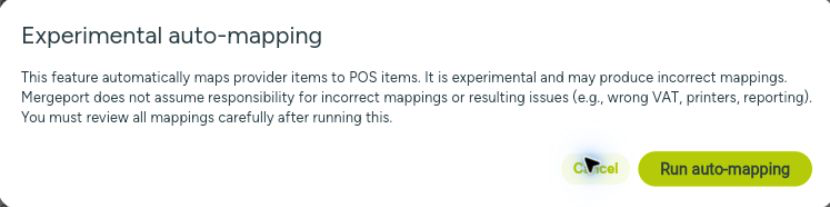
How automatic mapping works:
- Open the Menu Management section in the Mergeport Controller.
- Select Platform items. Check that the platform items and the corresponding POS items are loaded. If you have connected several platforms or brands, select the connection you want to work with.
- Click on Auto-map and confirm the dialog by clicking Run auto-mapping.
- Mergeport compares the name, description, price, and volume/size specifications (e.g., 0.33l, 500ml, 1l) to find matching POS items.
- Successful mappings are saved during the run. No additional save step is needed.
- Select Mapped (review) and review the mappings, especially options, variants and items with the same name. Unclear cases remain under Unmapped and must be linked manually.
Existing mappings will not be overwritten by the automatic run. You can change or remove mappings at any time.
Troubleshooting: "Unknown Products"
If items are shown as “Unknown products” in the POS system, this usually means the incoming order could not be matched to the POS article database.
Resolution Steps:
- Confirm with your POS provider whether matching uses platform-side IDs, MERGEPORT mapping, or a supported matching method in the POS.
- If your POS requires platform-side IDs, check the POS item IDs (PLU codes or article numbers) for the affected platform items. They must match the current POS items.
- If you map through MERGEPORT, check the affected items in the Controller and add or correct missing links. Review mappings after menu changes as well.
- Then verify with an order that the POS processes the items as intended. Missing platform-side IDs are not an error in every POS system; the agreed matching method determines what is required.
What Happens If an Item Is Not Mapped?
If an item is not mapped, the POS system may not process the order correctly. Depending on the system, the following outcomes are possible:
- The entire order is blocked and must be reviewed manually.
- Unknown items are created as placeholder items with a generic tax rate.
- Manual mapping is required—either directly in the POS or via MERGEPORT.
⚠️ Important Note
Some platforms supply optional tax rates that MERGEPORT can forward as taxRate. This field is not available for every line and does not replace POS tax handling. An absent value does not mean 0%. Check item mapping and tax settings with your POS provider.
Video Tutorials
Tips for Smooth Mapping
- Use unique IDs (e.g., PLU numbers) for precise mapping.
- Maintain a mapping table between platform items and POS items.
- Review new items regularly to ensure all are mapped.
- Agree with your POS provider how unknown items are created and their tax settings reviewed.
Help Center
Related articles
Integration Explorer