
Setup guide
Set up Lieferando through JET Connect
Set up Lieferando through JET Connect: order acceptance, Orderpad handling, menu synchronization and verification of the first order.
- Topic
- Integrations
- Last reviewed
Use JET Connect for new Lieferando connections through MERGEPORT. JET Connect is intended to replace the previous interface as the standard; existing restaurants migrate after coordination. Order receipt, acceptance and menu management are configured for your restaurant. Saving new settings alone does not migrate an existing Lieferando connection to JET Connect.
Before activation
Have your restaurant reference, country and exact storefront URL ready. Your POS must already be connected to MERGEPORT. The current JET Connect configuration supports Germany, Austria and the Netherlands; activation is specific to each restaurant.
Before starting, decide how you want to handle orders:
- When to activate the connection and place the first test order.
- Direct POS routing or orders arriving on Orderpad first.
- Automatic or manual customer-facing acceptance.
- Keeping the existing JET menu or synchronizing menus from the POS.
- Item mapping and the workflow during a POS outage.
Setup and first order
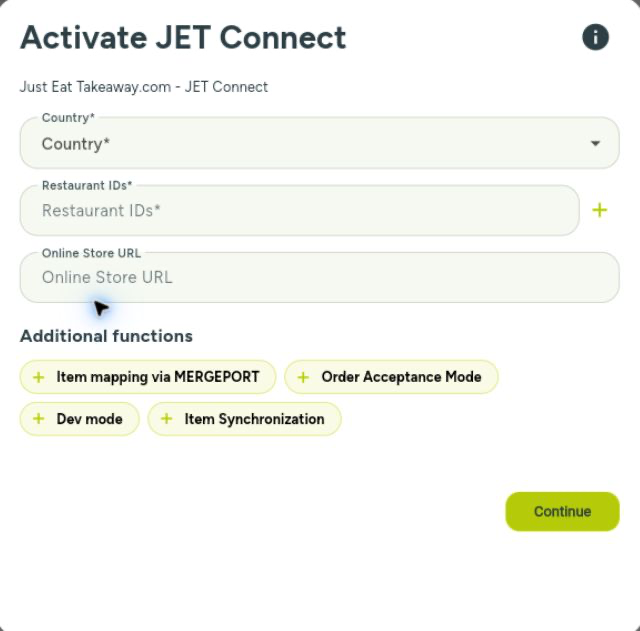
- Open your site configuration in the Controller. Use + under Linked platforms to add JET Connect and select the country. Enter the restaurant reference in Restaurant IDs. Under Additional functions → Online Store URL, reveal the storefront URL field and enter the full address. Click Continue to save the details. MERGEPORT manages the central JET credentials.
- Tell JET whether orders should go directly to the POS or to Orderpad first, and whether you want automatic or manual acceptance. JET configures this on the platform side. When migrating, specify which existing settings you want to keep.
- Check with your POS provider whether the POS automatically acknowledges incoming orders. This acknowledgement is separate from customer-facing acceptance.
- Check item IDs and mappings. Existing Lieferando or Thuisbezorgd catalog items can be imported for mapping using the configured storefront URL. Review the imported items and assignments before activation.
- Wait for JET's activation confirmation and place a test order. Check receipt, items, modifiers, quantities, payments and acknowledgement at the POS.
- If menu synchronization is included, also verify the published menu and item availability in the storefront.
Saving the configuration in the Controller does not activate the connection on the JET side. Check the first order all the way through to the POS.
What does auto-accept mean?
Two separate settings matter:
- Customer-facing acceptance: JET or the restaurant configuration determines automatic or manual acceptance and whether Orderpad is involved.
- Technical acknowledgement to JET: In
autoAcceptmode, MERGEPORT directly acknowledges receipt of the order. InposAcceptmode, the technical success acknowledgement waits for acceptance by the POS.
MERGEPORT's autoAccept setting therefore does not automatically mean tablet-free operation. A technical failure report is also not an automatic customer cancellation or refund.
Can we keep Orderpad?
Yes. With direct routing it can remain available as backup without staff handling normal orders there. With Orderpad-first or hybrid operation, forwarding follows the agreed acceptance workflow. There is no universal default configuration.
Only remove or disable the device after explicit agreement with JET. Keep the agreed Orderpad or Live Orders backup process available for outages.
Menu synchronization or orders only?
Both are possible:
- Orders only: Keep the existing JET menu. JET must enable this mode; switching off menu synchronization in MERGEPORT alone is insufficient.
- Menu synchronization: The POS supplies the menu through MERGEPORT to JET Connect. Appropriate configuration and enablement are required. Review customer-facing names, categories, prices, modifiers and item IDs before the first upload.
The menu may not appear immediately after uploading. Check the result in the storefront. Importing existing storefront items for mapping does not publish a new menu.
Can delivery times be changed from the POS?
Delivery times cannot yet be changed from the POS through the current JET Connect integration. Incoming cancellations and driver events are processed independently of this limitation.
Enablement for ETA changes is expected, but the current integration does not yet provide this capability.
If your restaurant depends on these time changes, agree a workflow before migrating. Capabilities of an earlier Lieferando connection do not automatically apply to JET Connect.
Support
For setup questions or missing orders, contact your integration partner or support@mergeport.com. Changes to JET-side activation and restaurant workflows must be agreed with JET.
Help Center
Related articles
Integration Explorer